
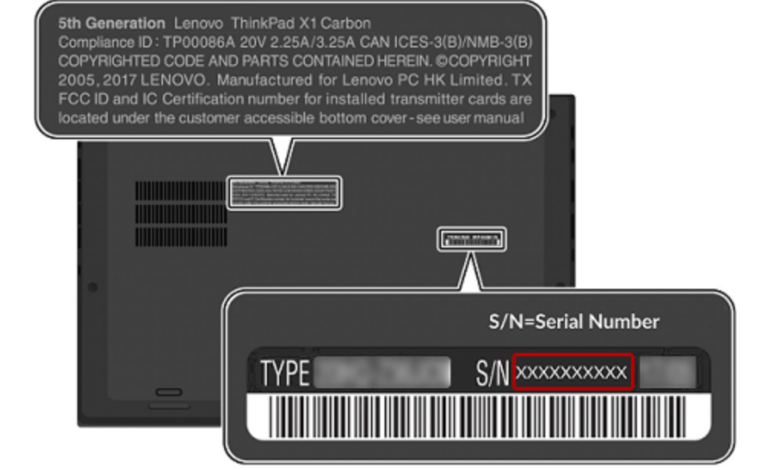
You may be looking for your laptop’s serial number for a variety of reasons, and there are several ways to do it. These are a few of the most effective methods for locating the laptop’s serial number.
1. Laptop Base and Battery Compartment
Typically, the base of the laptop where the battery is installed has the serial number. Turn the laptop over and look for the serial number. Otherwise, the base of the laptop would have it written there as Model Number or Serial Number.
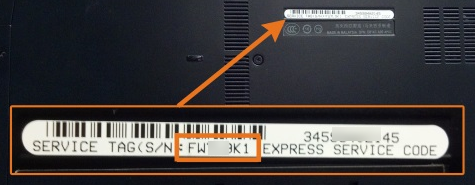
The serial numbers are usually printed directly on the laptop’s plastic or metal. If you don’t find the serial number, remove the battery and check inside the compartment.
You can also look at the laptop bill.
2. Command Prompt Method
The command prompt makes it simple to determine the serial number of your laptop.
Launch Windows Search and enter CMD. Choose Run as administrator with a right-click on CMD.
Enter “wmic bios get serialnumber” and hit “Enter.” The computer’s serial number will now be visible to you. “To be filled by O.E.M.” indicates that the PC manufacturer entered the number incorrectly.
Recommended: How to Prevent Eye Damage from Computer Screens
3. PowerShell Method
The serial number of your laptop may be found using PowerShell, just like with the command prompt. Type PowerShell into the Windows search bar, then choose “Run as administrator” with a right-click.
Run “gwmi win32_bios | fl SerialNumber”. Your screen will now show your serial number.
4. BIOS Method
Using the BIOS or UEFI firmware settings is another simple way to determine the laptop’s serial number.
Go to the BIOS settings page and take a quick look at the main screen to accomplish this. Take note of the number that appears behind the “Serial Number”. Look for the Serial Number under “System Configuration” if it isn’t visible on the main screen.
These are the most effective methods for locating the serial number on your Windows laptop. Please let us know in the comments if you require any additional assistance with this subject.